PRIVATE PHOTO VAULT® HELP
Frequently Asked Questions
Find answers about your passwords, photos, backups and purchases. Start here before contacting support.
Can I recover my password?
If you set up a recovery email when you first used Private Photo Vault®, you can use it to recover your app or album password. Without a recovery email, those passwords cannot be recovered through this process.
To recover the overall app password
- Enter the app password incorrectly eight times in a row.
- When the password recovery prompt appears, choose Yes.
To recover an album’s password
- Enter the album password incorrectly five times in a row.
- When the password recovery prompt appears, choose Yes.
These steps apply to app and album passwords, not your separate Cloud Vault password. Options can vary by app version. Don’t uninstall the app to reset a password; files stored only in the app can be lost.
I am getting a new phone. How can I transfer Photo Vault to my new phone?
Cloud Vault (recommended)
- Update to the latest app. Open Settings → Cloud Vault and set up your account. Cloud Vault is an optional premium feature.
- Allow the backup to finish.
- Open Private Photo Vault® on your new device and sign in to Cloud Vault. Keep your Cloud Vault password available.
Computer backup for iPhone or iPad
- Connect your old device to your computer and make a backup using Finder, Apple Devices or iTunes, depending on your computer.
- Restore that backup to your new device.
Apple’s backup instructions explain the options. Our earlier instructions refer to iTunes; Apple now also uses Finder and Apple Devices.
Some customers have reported problems restoring Private Photo Vault® data through iCloud device backups. Use a completed Cloud Vault or computer backup and verify your files on the new phone before removing them from the old one.
I had to reset my phone. Can I restore my photos?
Cloud Vault (recommended)
If Cloud Vault was enabled and your files finished uploading before the reset, sign in through the app to access that backup.
Computer backup for iPhone or iPad
If you made a device backup containing your vault before the reset, you may restore it using Finder, Apple Devices or iTunes. Follow Apple’s restore instructions. A device restore can replace current data, so review Apple’s instructions first.
Some customers have reported issues restoring vault data from iCloud device backups. Recovery depends on an existing usable backup; signing in cannot restore files that were never backed up.
What should I expect when my subscription expires?
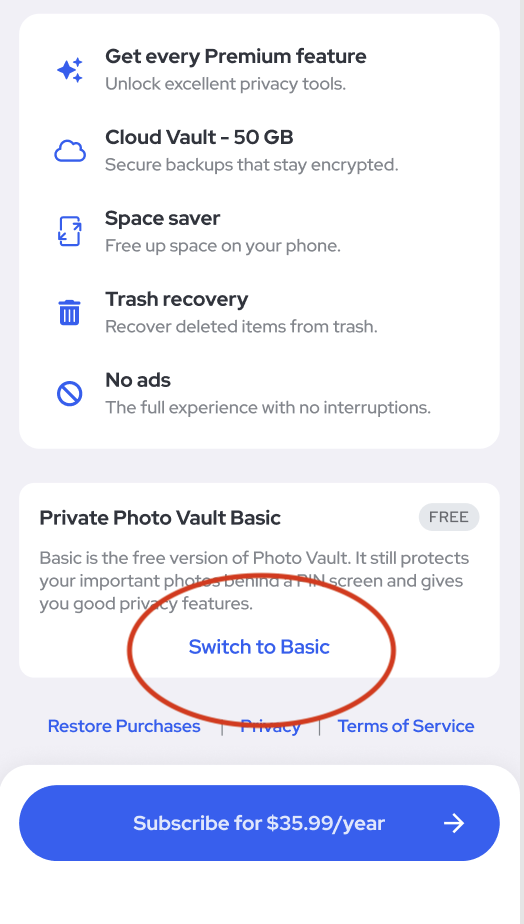
The “Premium has Expired” screen lets you renew or switch to Basic for free. Scroll down on that screen and tap Switch to Basic.
Basic still protects your photos behind a PIN. Photos stored in the app remain accessible, but your Cloud Backup will be deleted. Review your files and backup options before switching.
My app disappeared. Where did it go?
- You may have removed the app from your Home Screen. On iPhone, swipe past the last Home Screen page and check the App Library.
- If you had the separate Pro version, look for an app named SV. That version was renamed and given a new icon.
I deleted the app off my phone. Can I recover my data?
Deleting the app removes the photos and videos stored in it from your phone. Recovery may be possible if you already had a backup:
- Cloud Vault: if you enabled it and the files finished uploading, sign in through the app and download your backed-up data.
- Computer backup: if an iPhone or iPad backup contains your vault, follow Apple’s instructions to restore it.
Without a usable backup, we cannot restore deleted files. If you are troubleshooting missing photos, contact us before deleting or reinstalling the app.
I purchased this on my iPhone. Can I get it for free on my iPad?
Yes. Restore your purchase on your additional Apple devices using the Apple Account that made the purchase. In Private Photo Vault®, open Settings and tap Restore Purchase.
What video formats does Private Photo Vault® support?
Private Photo Vault® supports .mov and .mp4 files.
Does Private Photo Vault® require location access?
Location access is used for location-dependent features, including location information in Break-in Report and Location Based Lock. You do not need to enable these features to use the app for storing private photos and videos.
I already purchased Pro. Why is it still showing ads?
Open Settings in Private Photo Vault® and tap Restore Purchase. Make sure you are using the store account that made the purchase. If ads remain, contact support.
Who can see my photos?
Our team cannot view the photos or videos in your vault.
With Cloud Vault enabled, files are encrypted on your device before they reach our servers, using your key. Read how Cloud Vault protects your files.
With Cloud Vault disabled, vault files are stored on your device. If you enable iCloud device backup, copies of your encrypted vault files may also be stored on Apple’s servers.
Can I recover my Cloud Vault password?
No. Your Cloud Vault password is never uploaded to our servers and cannot be recovered by our team. It is separate from your app passcode. Keep a safe record of it.
Is Private Photo Vault® secure?
Private Photo Vault® uses AES-256 encryption to protect your data. You can also choose a vault passcode different from your phone’s code. Explore privacy and access controls.
Is Cloud Vault secure?
Your photos and videos are already encrypted in the app. Cloud Vault adds another layer of encryption on your device before upload, using a key created from your Cloud Vault password. Our team cannot view that content. Read more about Cloud Vault encryption.
What is Photo Vault?
Private Photo Vault® is an encrypted app for locking and storing private photos and videos on iPhone and Android. You can use the on-device vault without an account, offline by default.
How do I cancel my subscription?
Cancel through the store where you subscribed:
- Apple subscription cancellation instructions for App Store purchases.
- Google Play subscription cancellation instructions for Google Play purchases.
Deleting the app does not cancel a subscription. Before changing your plan, read what happens when Premium expires.
YOUR PHOTOS. YOUR PRIVACY.
Lock your photos & videos.
Free to download for iPhone and Android.